Bill of Materials: generate a BOM from any SolidWorks assembly
You can now open any assembly in your vault and get an indented Bill of Materials in the Web Dashboard. Parts, subassemblies and quantities come from the assembly's own references, so there's no drawing to create just to hold a BOM table, and nothing to re-type into a spreadsheet.
This is the single most requested thing on our list, and it's the one that changes the most about a working day.
🎥 Prefer to watch? Ken walks through it in under 3 minutes.
⚠️ Before you start: update the add-in. Always run the latest version: download it here. BOM is on the Scale plan (legacy Business Plus workspaces keep it during the transition).
What you get
- Indented BOM from any assembly: read from the assembly's references at check-in
- QTY counted for you: including parts that repeat across subassemblies
- Your SolidWorks custom properties as columns: part number, material, vendor, description, finish
- Editable: add rows for what you never model, adjust quantities, check it back in as a new version
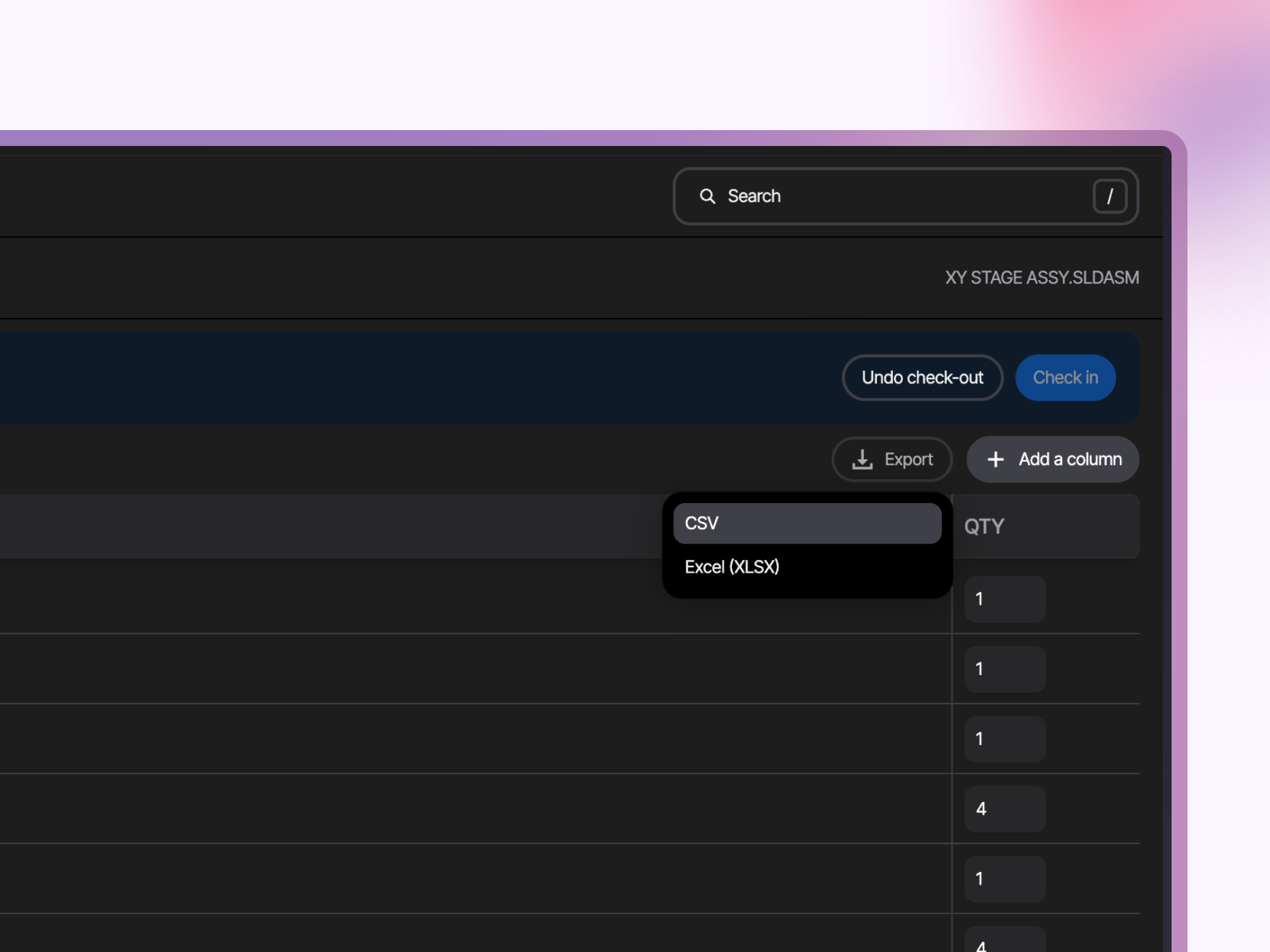
- Export to Excel (XLSX) or CSV: straight from the Dashboard
- Readable without a CAD seat: purchasing and project managers work from the same list
How this is different from a BOM table on a drawing
Worth being clear, because this is the question we get most:
A BOM table lives on a drawing. To get one, you make a drawing, sometimes a drawing whose only job is to carry the table. Then someone exports it, someone else edits the export, and within a week the spreadsheet and the model disagree.
The BOM in Sibe is attached to the assembly, not to a drawing. It's built from the same references SolidWorks uses to open the assembly, and it moves with the file: check in a new version, and the parts list matches it. Your drawings keep doing what drawings are for.
Open the BOM
- In the Web Dashboard, go to the folder holding your assembly
- Open the actions menu on the assembly file
- Choose Bill of Materials
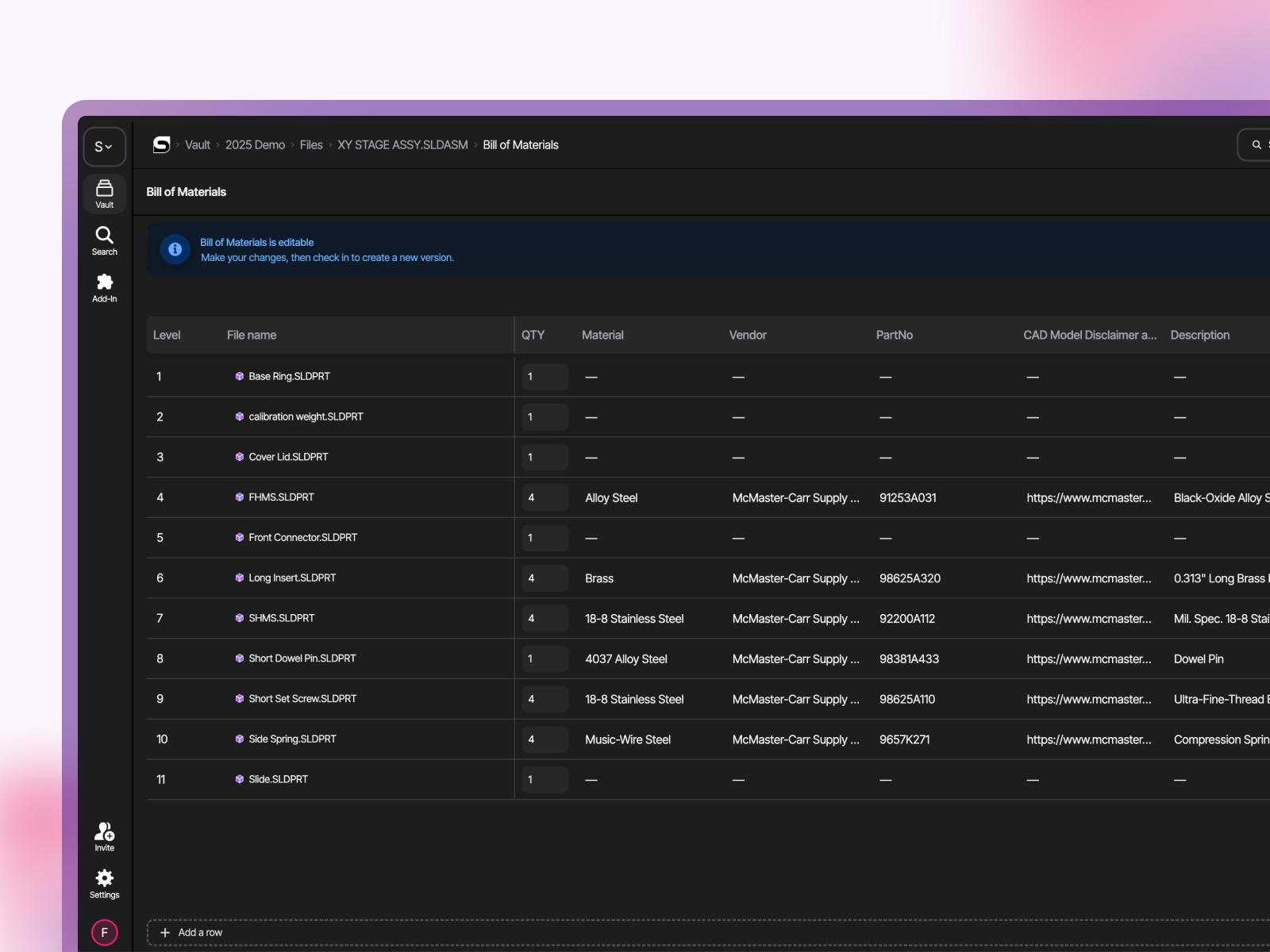
Nothing to configure first. You get an indented BOM with Level, File name and QTY already filled in.
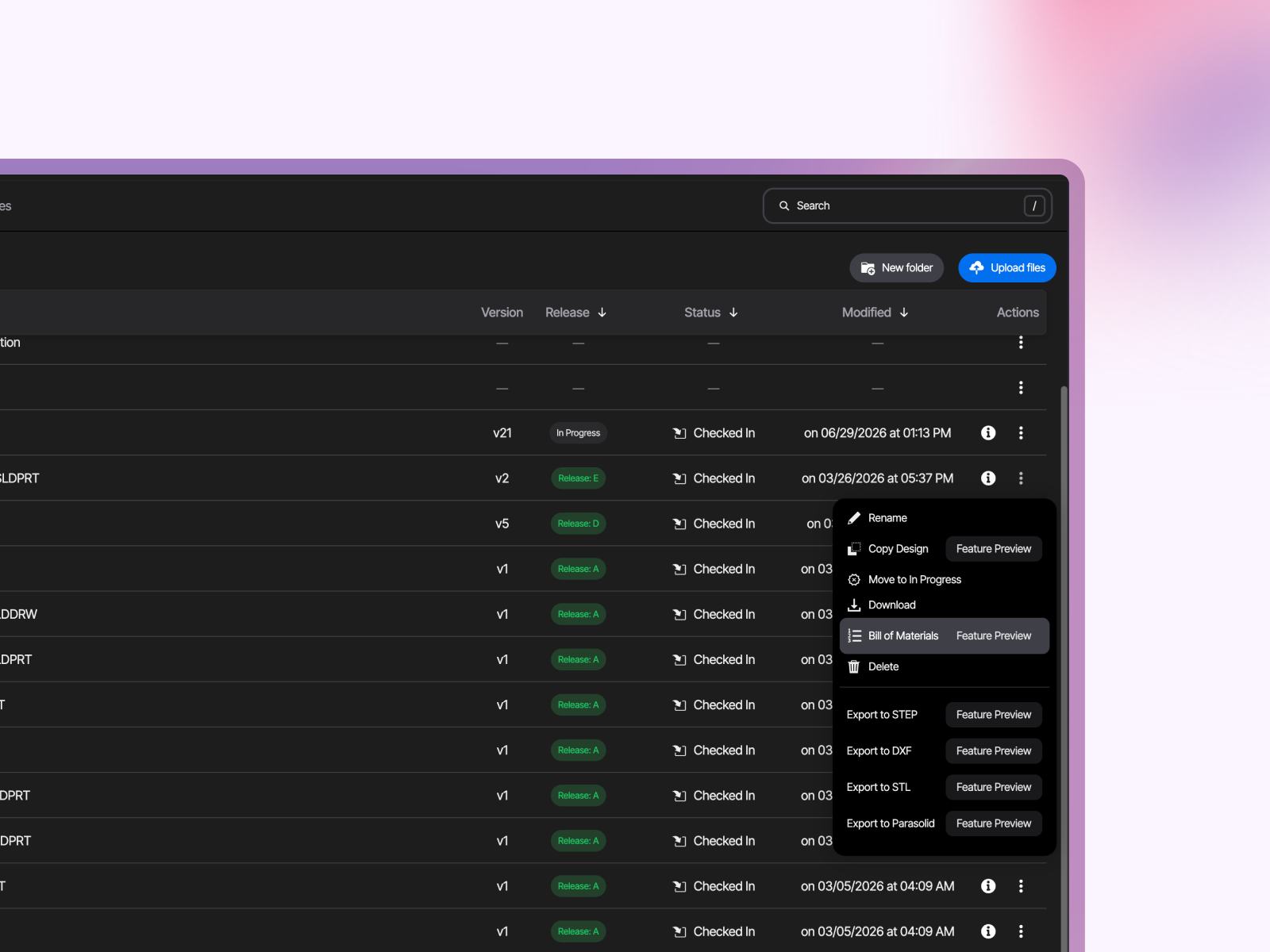
Quantities count automatically, including parts that appear in more than one subassembly. That's the tally most teams still do by hand, and the one most likely to be wrong on a list typed into Excel at the end of the week.
Pull in your custom properties
The product data is already in your files. Bring it into the BOM instead of re-typing it:
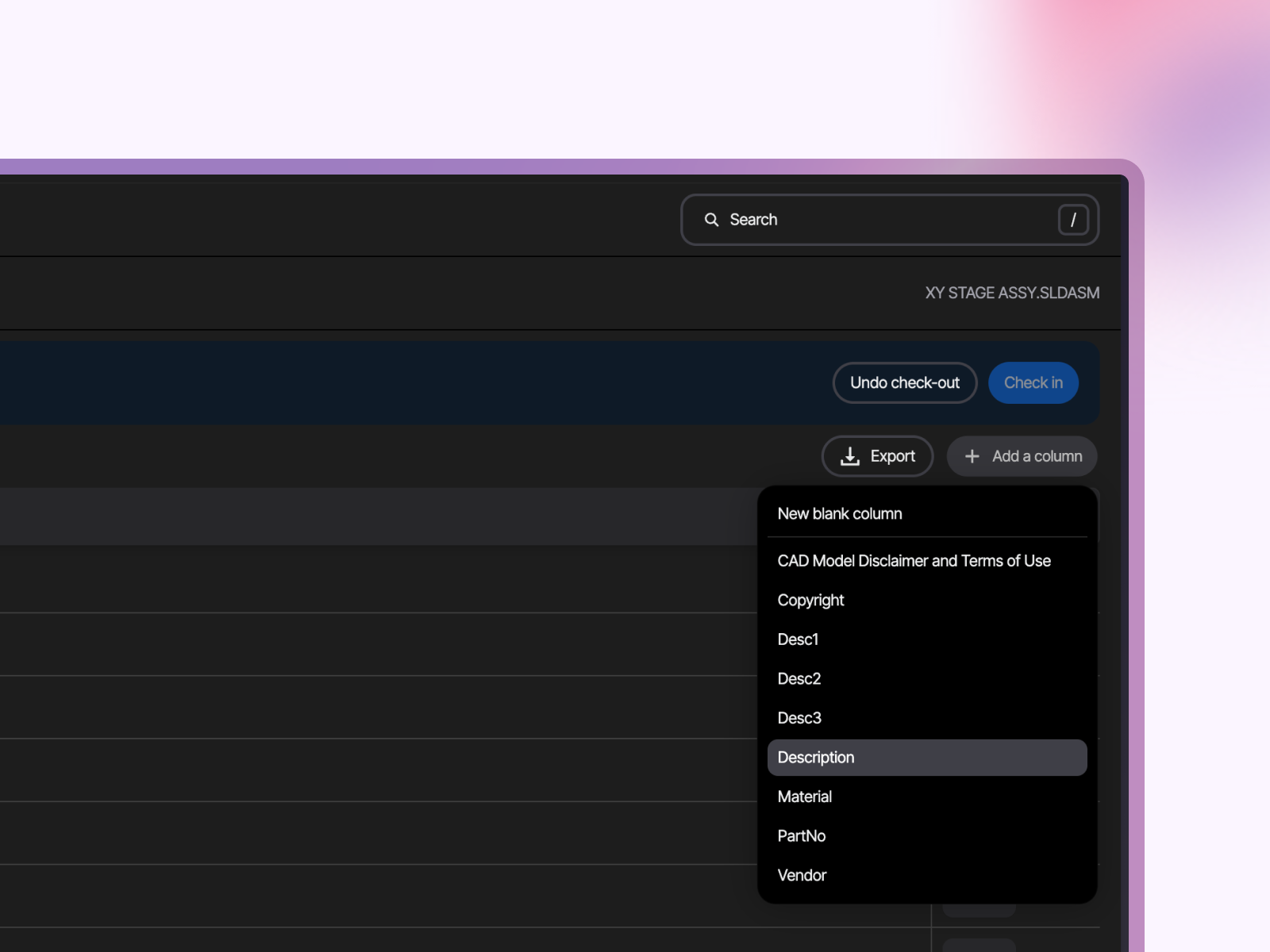
- Choose Add column
- Pick the SolidWorks custom property you want
- Sibe fills the column from what it read at check-in
Tracking something that lives outside CAD, like a supplier code or a note for purchasing? Add a blank column and type into it.
If your team already links revision numbers to properties, those same fields are available here.
Edit it without breaking it
A shipping product is more than what you model. The BOM follows the same check-out rule as your CAD files:
- Check out the BOM
- Add rows for packaging, fasteners, adhesives, grease: the items that never appear in a feature tree
- Adjust quantities where the model doesn't tell the whole story
- Check in to create a new version of the BOM
Changed your mind? Undo Check-Out discards the edits and leaves the previous version in place.
While the BOM is checked out to you, nobody else can edit it, the same protection your parts and assemblies get.
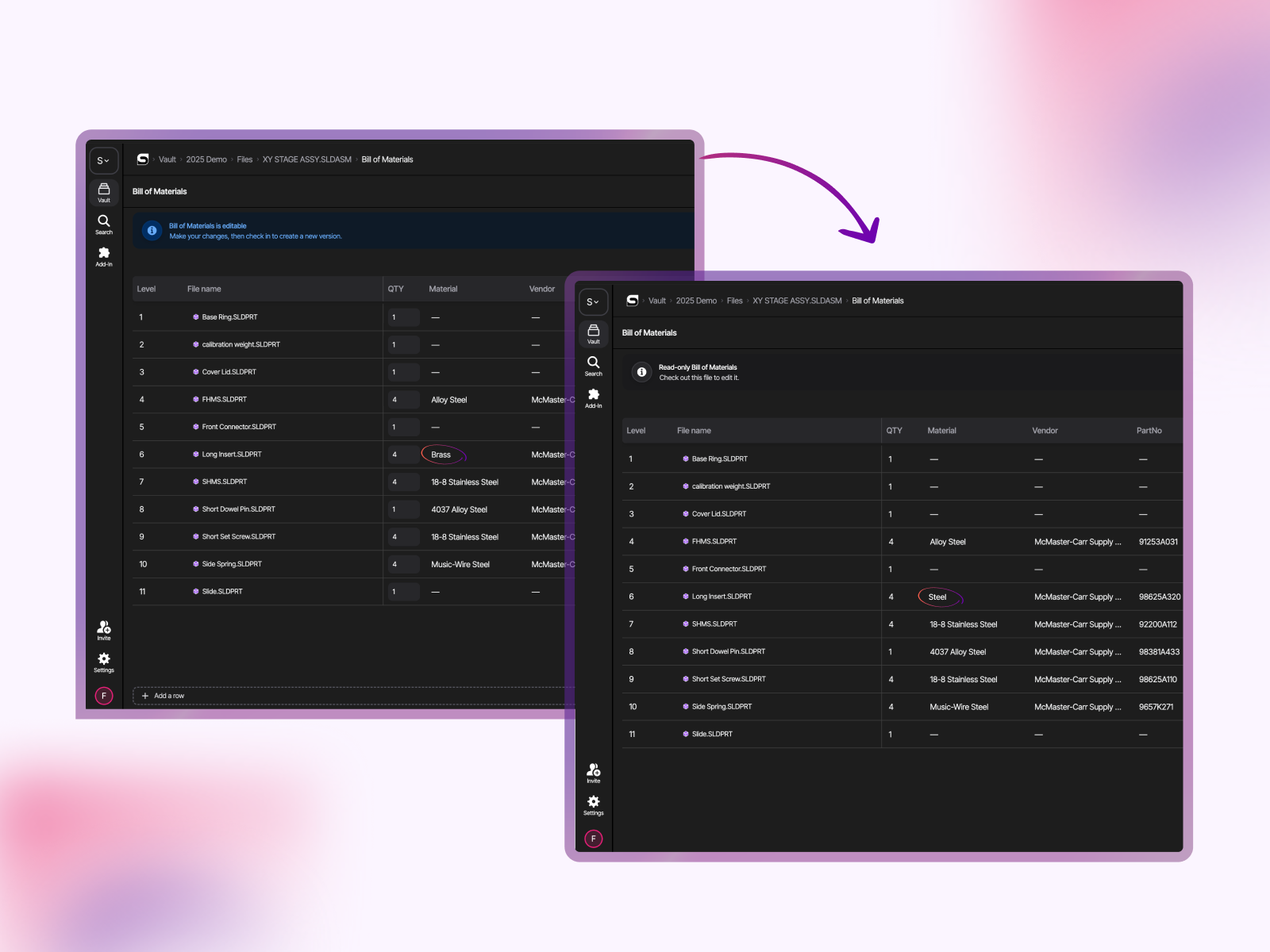
It updates with the next check-in
Change a material, swap a component, add a fastener. Check the assembly in and the BOM data updates with it.
Export it for purchasing
Export to Excel (XLSX) or CSV directly from the Dashboard: for purchasing, for a quote, or to load into another system.
One thing worth being precise about: the BOM in Sibe stays the current one, so the export is a snapshot you send out, not a second copy you maintain.
Who can do what
Seat | BOM access |
|---|---|
Editor | Generate, edit and export |
Contributor | Generate, edit and export |
Viewer | Read-only |
Contributors and Viewers work in the browser, so purchasing, project managers and production read the same parts list without a SolidWorks license.
What this release covers
So nothing surprises you when you try it: you get one indented BOM from the assembly's Default Configuration, and you do all BOM work in the Web Dashboard.
You asked for this one, so keep going. Tell us what you want it to do next and it goes straight to the team. Message us in the chat.
A typical run, start to finish
- Finish your edits and check the assembly in directly in SolidWorks
- Open the assembly in the Web Dashboard and choose Bill of Materials
- Add the columns purchasing needs: part number, material, vendor
- Check out the BOM and add the packaging and fasteners you never modeled
- Check it back in
- Export to XLSX and send it on
Frequently asked questions
Do I need to create a drawing to get a BOM?
No. The BOM is built from the assembly's own references, so there's no drawing to create purely to place a BOM table on it.
Does QTY count parts used in more than one subassembly?
Yes. Quantities are counted automatically across the whole structure, including parts that repeat across subassemblies.
Can I add items that aren't modeled in SolidWorks?
Yes. Check out the BOM and add rows for packaging, fasteners, adhesives or grease, and adjust quantities where you need to. Check it back in to create a new version, or use Undo Check-Out to discard the edits.
What happens to the BOM when I check in a new version of the assembly?
The BOM data updates with it, so the parts list matches the version in the vault.
Can people without a SolidWorks license work with the BOM?
Yes. Editors and Contributors generate, edit and export BOMs in the browser. Viewers get read-only access. Purchasing and project managers don't need a SolidWorks seat.
What export formats can I use?
Excel (XLSX) and CSV, exported directly from the Web Dashboard.
Which plans include BOM?
Scale. Legacy Business Plus workspaces keep it during the transition.
Do I need to update the add-in?
Yes. Always run the latest version of the Sibe add-in: download it here. It keeps your check-ins, references and BOM data in step with the Dashboard, and it's what brings you the July release too: Copy Design, bulk check-in and check-out, and the faster Vault tab.
Not sure which version you're on? Open the add-in and check Settings, or ask us in the chat and we'll confirm.
Related reading
- BOM management for SolidWorks: the feature page, with the 10-second build
- How the BOM is generated at check-in: the full release write-up
- Sibe July Update: Copy Design, Bulk Operations & a Faster Add-in
- New seat types, metadata search, and DWG/DXF collaboration: who can see and edit what
- Free BOM templates: if you're still keeping the parts list in a spreadsheet
Not using Sibe yet?
Book a free onboarding and Q&A session and we'll build a BOM from one of your own assemblies and show you how it fits your current setup.
Updated on: 10/02/2026
Thank you!